Weekly Schedule Preparation
 Weekly Schedule Preparation
A weekly schedule defines recurring lectures repeating on a weekly cycle throughout the semester. Before scheduling can begin, all basic data must be entered and instructors assigned to their respective courses (courses without assigned instructors will not appear in the active placement queue).
Preparing the Schedule
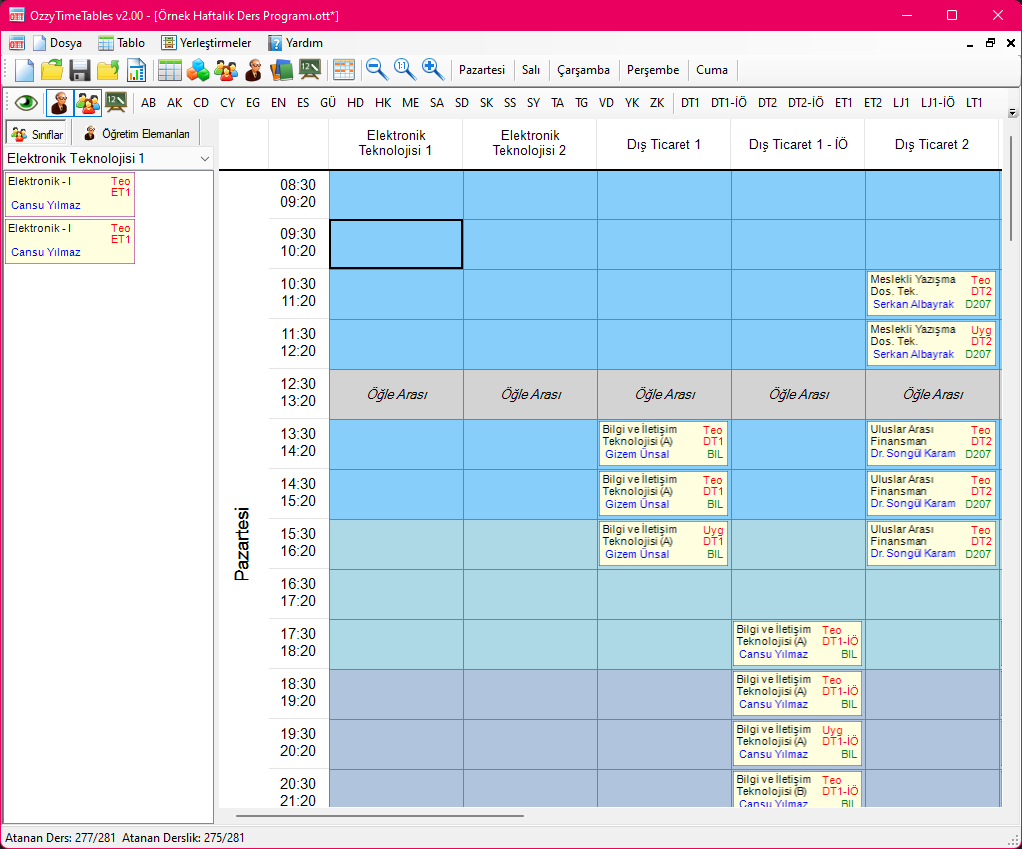
Preparing a weekly schedule involves selecting courses from the left-hand panel and dragging them into target timetable cells. The left panel offers two view modes:
- By Classes: Courses defined under each class are listed according to the selected class. This is ideal for scheduling one class cohort at a time.
- By Instructors: Courses assigned to the selected instructor are listed. This is ideal for planning an instructor's teaching days and hours.
You can switch between these two views at any time. Drag courses from the list and drop them into any available period under the relevant class. If the target cell is invalid for that course (due to an instructor conflict, room constraint, or education level mismatch), a tooltip explains the conflict and prevents placement. You can reposition placed courses by dragging them to new cells. To unassign a placed course and return it to the queue, drag it back to the list or select its cell and press Delete. (Pressing Delete does NOT delete the course record; it merely unassigns it from the schedule cell).
Assigning Classrooms
Once all courses are placed, classrooms should be assigned. If you previously configured default rooms in Class or Course properties, those rooms may have been assigned automatically during placement. To assign or change a classroom, right-click on the scheduled course cell. The context menu displays available classrooms with their codes and current enrollment / capacity ratios, helping you ensure the selected venue has sufficient seating for the class enrollment. While enrollment numbers are helpful, their entry is optional; you can assign rooms freely without entering headcount data.
A physical classroom cannot be double-booked at the same day and hour. However, if the simultaneous courses have been grouped as Common Courses, assigning the same room to both is fully permitted.
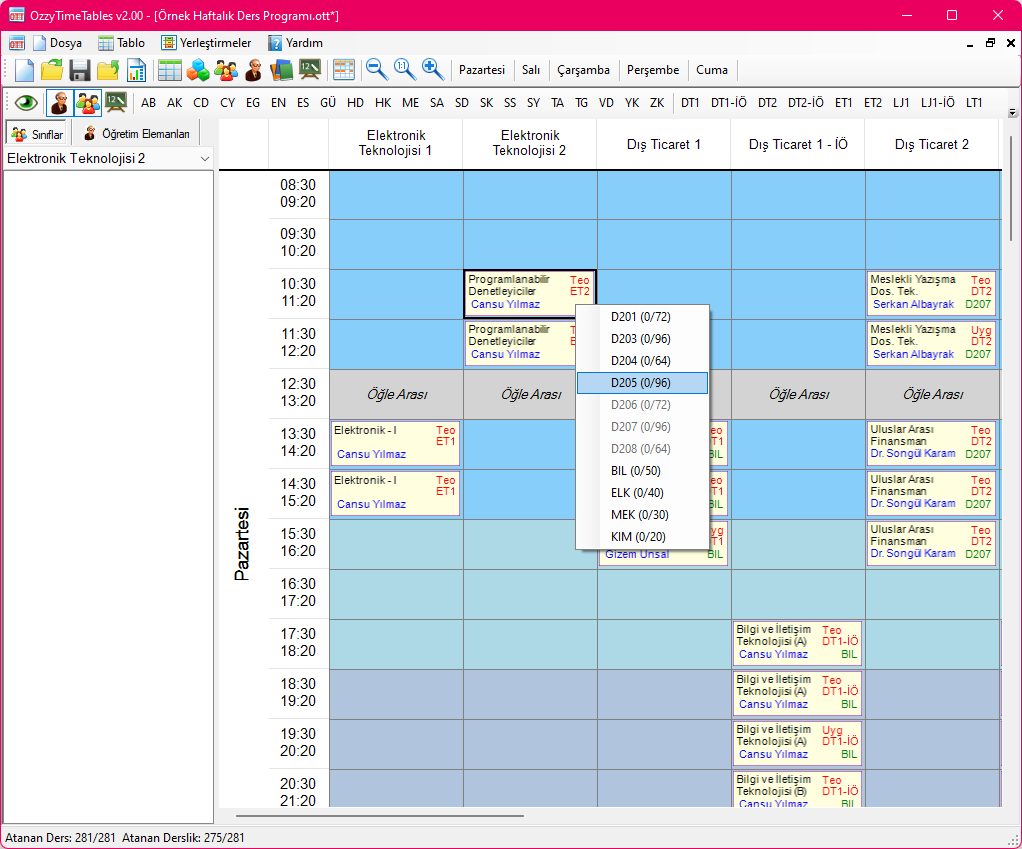
Once all placements and room assignments are complete, your Weekly Class Schedule is finished. You can select Conflict Check from the Placements menu to perform an automated validation check. You can then proceed to export and print your Reports and Outputs.
 To export the entire schedule timetable into an Excel workbook, select Export Schedule Table to Excel from the Timetable menu. The complete schedule will be exported and opened in Microsoft Excel, where you can format or save it. Microsoft Excel must be installed on your computer.
Created with the Personal Edition of HelpNDoc: Full-featured EBook editor