Reports and Outputs
 Reports and Outputs
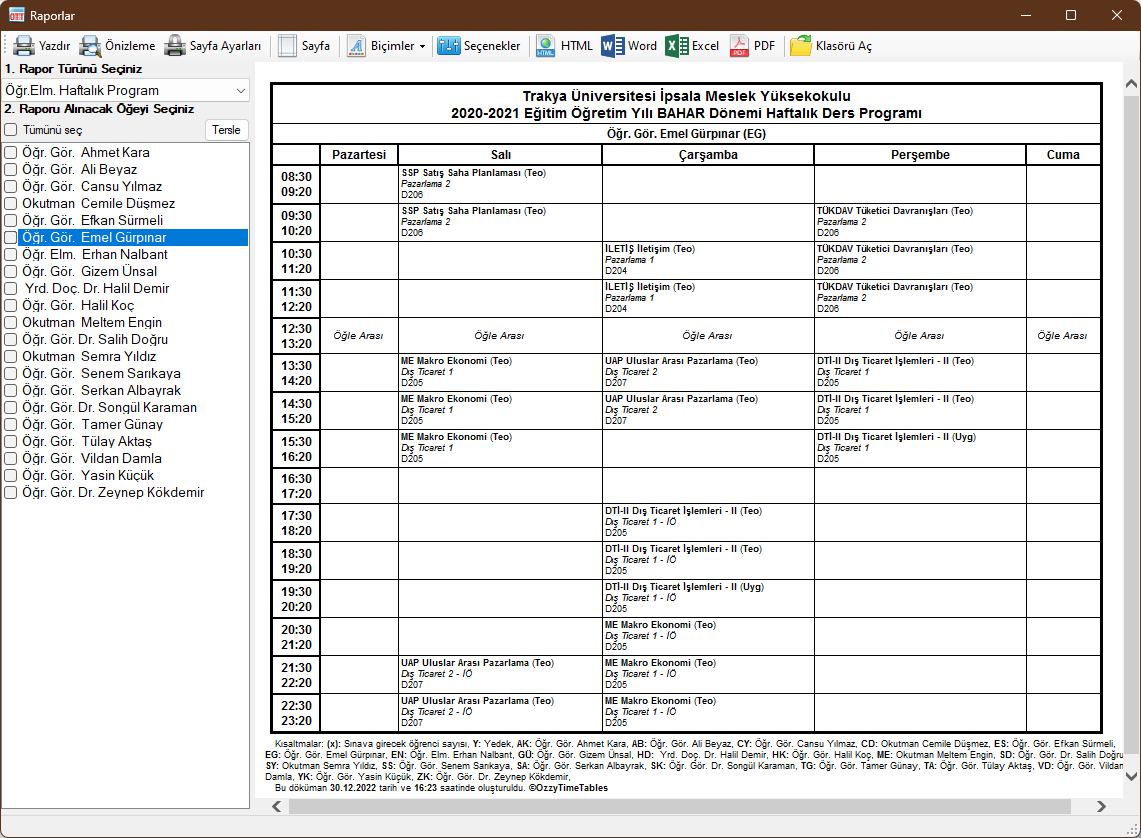
After finalizing a Weekly Class Schedule or Exam Timetable, reports must be officially served to faculty and published for students. The Reports and Outputs window provides comprehensive document generation features. First, select the desired report type (options vary based on whether you are working in a Weekly Schedule or Exam Schedule). When a report type is selected, applicable entities (classes, instructors, or classrooms) appear in the selection list. Selecting an item displays a live print preview. For batch export, check the boxes next to the items you wish to include.
After making your selections, choose from the following output methods:
- Print selected reports directly to a printer (consider digital distribution to conserve paper)
- Save outputs in HTML web format
- Save outputs in Microsoft WORD (.docx) format (requires Microsoft Office)
- Save outputs in Microsoft EXCEL (.xlsx) format (requires Microsoft Office)
- Save outputs in standard PDF format
Direct Printing
Before printing directly to paper, review printer and page settings using Print Preview. Check paper size, page margins, and header/footer configurations.
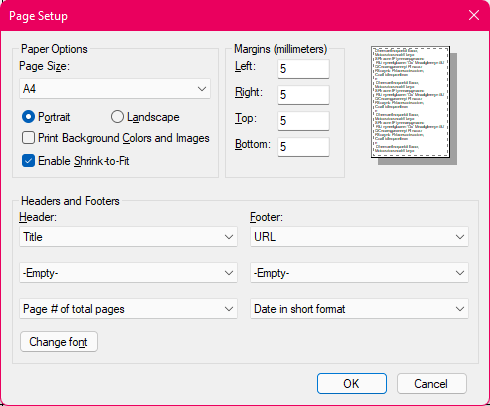
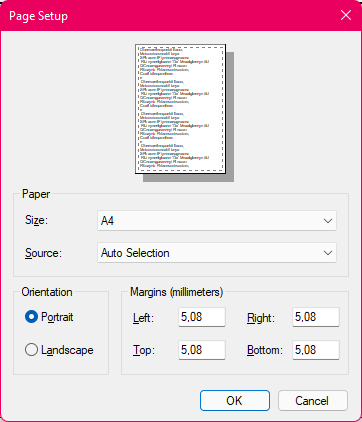
Page Setup
Configure paper size (A4, Letter, etc.), orientation, headers, footers, and margin dimensions.
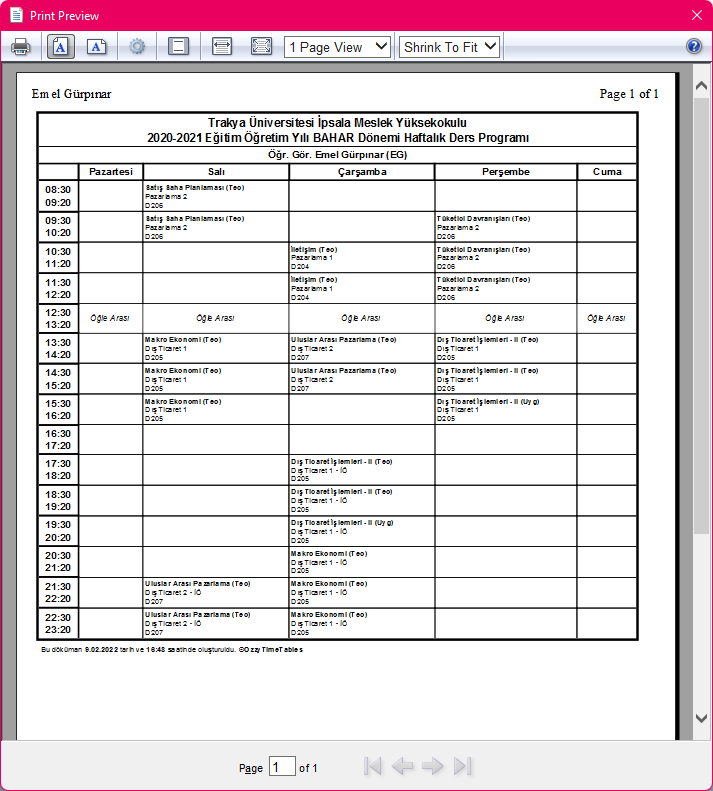
Print Preview
Preview allows you to verify document formatting and fit. If a schedule overflows a single page, you can scale the content down to fit neatly. You can also print directly from this preview dialog.
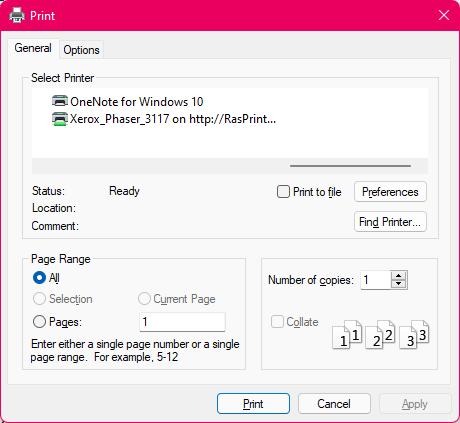
Click the Print button to send selected reports to the printer. If a single document is selected, the printer selection dialog will appear. For batch printing, jobs are queued to the default or last-selected printer after a confirmation prompt.
Report Page Settings
Report Styles
Pre-designed aesthetic templates that determine table styling, borders, fonts, spacing, and header layouts. Select any template to restyle your output immediately.
Display Options
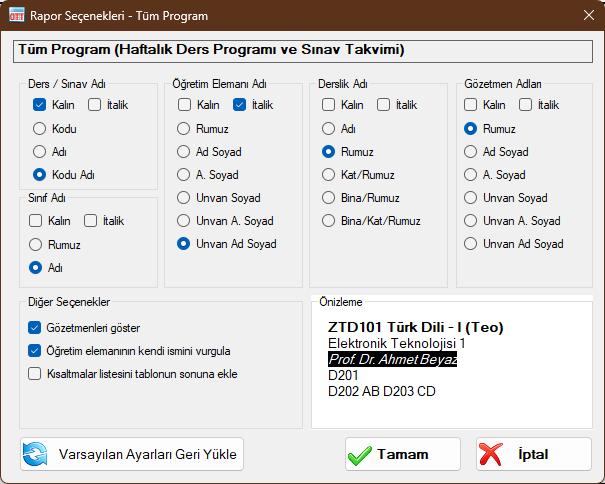
The Options dialog lets you configure how course names, instructor titles, room codes, and proctor labels are formatted inside timetable cells. These settings are customized per report type (indicated at the top of the dialog) and are saved on your computer for future sessions.
Saving Batch Reports
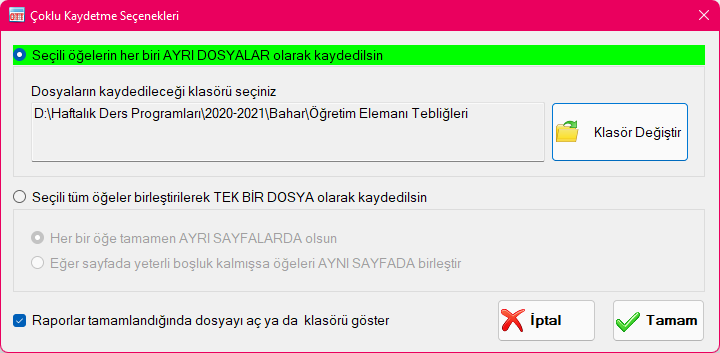
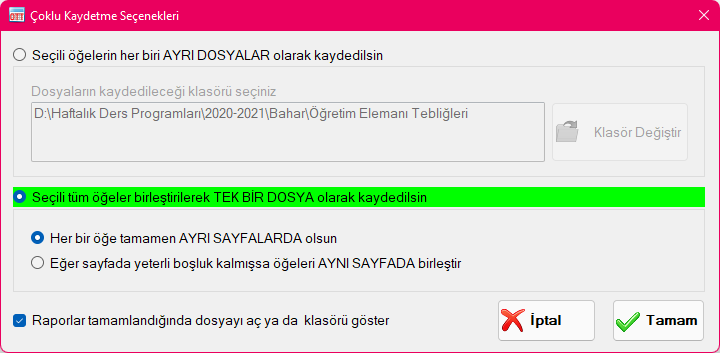
When exporting multiple items simultaneously, you are presented with two primary export structures:
- Save each selected item as a SEPARATE FILE: Prompts you for a target directory and saves each schedule (e.g., each class or instructor) as an independent document in the chosen format.
- Combine all selected items into a SINGLE FILE: Merges all items into a unified multi-page document. Sub-options allow forcing each item onto a new page ("Start each item on a SEPARATE PAGE") or packing compact tables consecutively on the same page ("Combine items on the SAME PAGE if space permits") to conserve paper when printing individual teaching load summaries.
Open Destination Folder
Opens the folder where generated report files were most recently saved. Checking "Open file or show folder when complete" automatically reveals the folder upon export.
Created with the Personal Edition of HelpNDoc: Keep Your Sensitive PDFs Safe with These Easy Security Measures