Exam Schedule Preparation
 Exam Schedule Preparation
Throughout the academic year, various exam timetables must be prepared—including Midterm, Make-up, Final, Resit (Bütünleme), and Maximum Duration exams. If you have already prepared a weekly schedule or a previous exam timetable, you can pull data from those files to start your new exam schedule immediately.
Preparing the Schedule
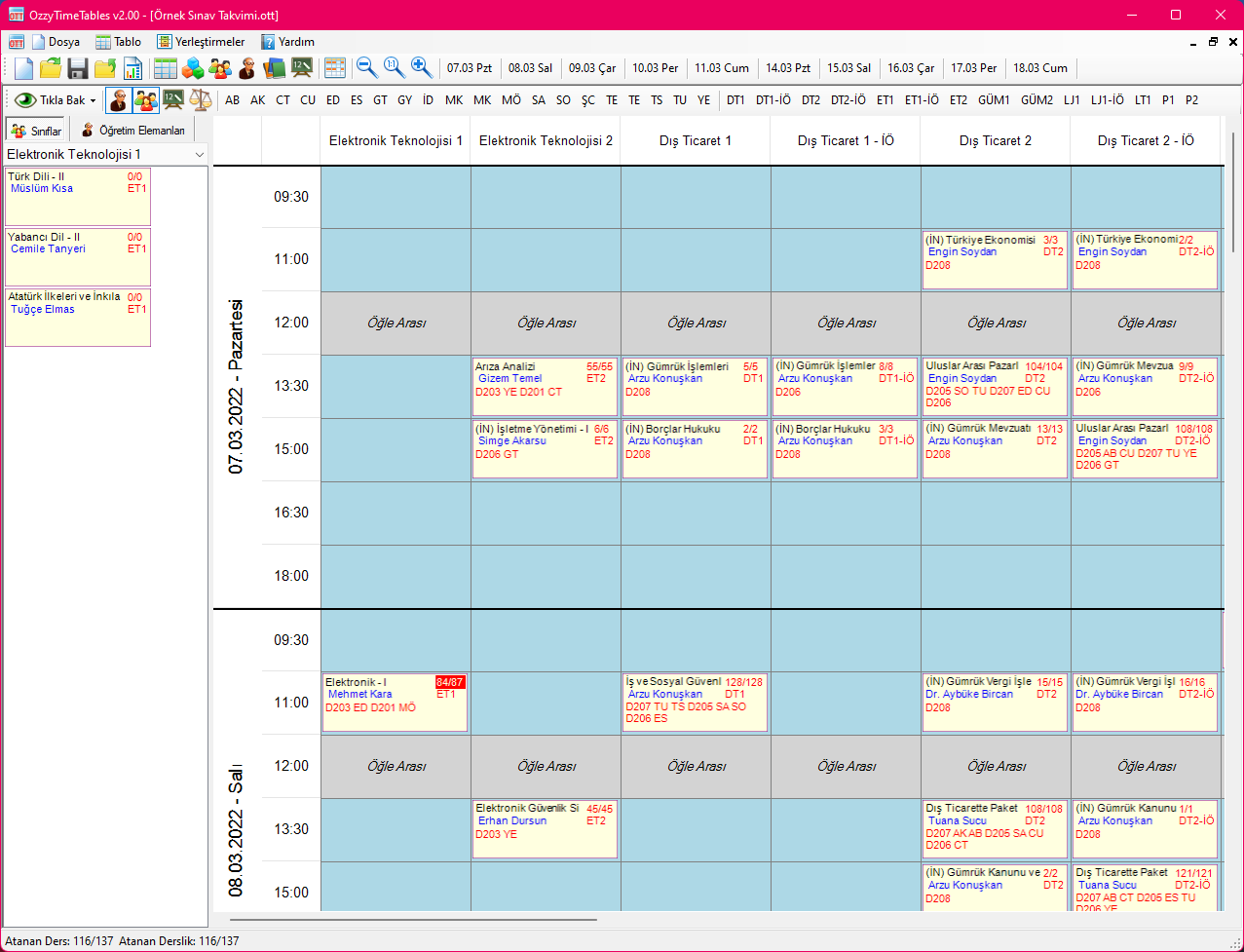
Preparing an exam schedule involves taking courses from the left-hand panel and dragging them into the appropriate date and time cells. The courses can be listed in two modes:
- By Classes: Lists courses belonging to the selected class. Useful when placing exams class by class.
- By Instructors: Lists courses assigned to the selected instructor. Useful when planning exams around instructor availability.
You can toggle between these two views freely. Drag courses from the list into the desired timetable cells. If a cell is invalid for that exam, the conflict reason appears beside the cursor and placement is prevented. You can relocate placed exams by dragging them to new cells. To return an exam to the queue, drag it back to the list or select the cell and press Delete. (Delete does NOT erase the course record; it only unassigns the exam from the schedule cell).
Assigning Classrooms and Proctors
After placing exams into time slots, classrooms and proctors must be assigned. An exam can be assigned multiple classrooms, and each classroom can have multiple proctors. Right-click on a scheduled exam cell to open the room assignment menu. This menu displays classroom codes, current usage status, and allocated student count / exam capacity. Clicking a classroom reveals a submenu listing available proctors, allowing you to assign proctors immediately or later.
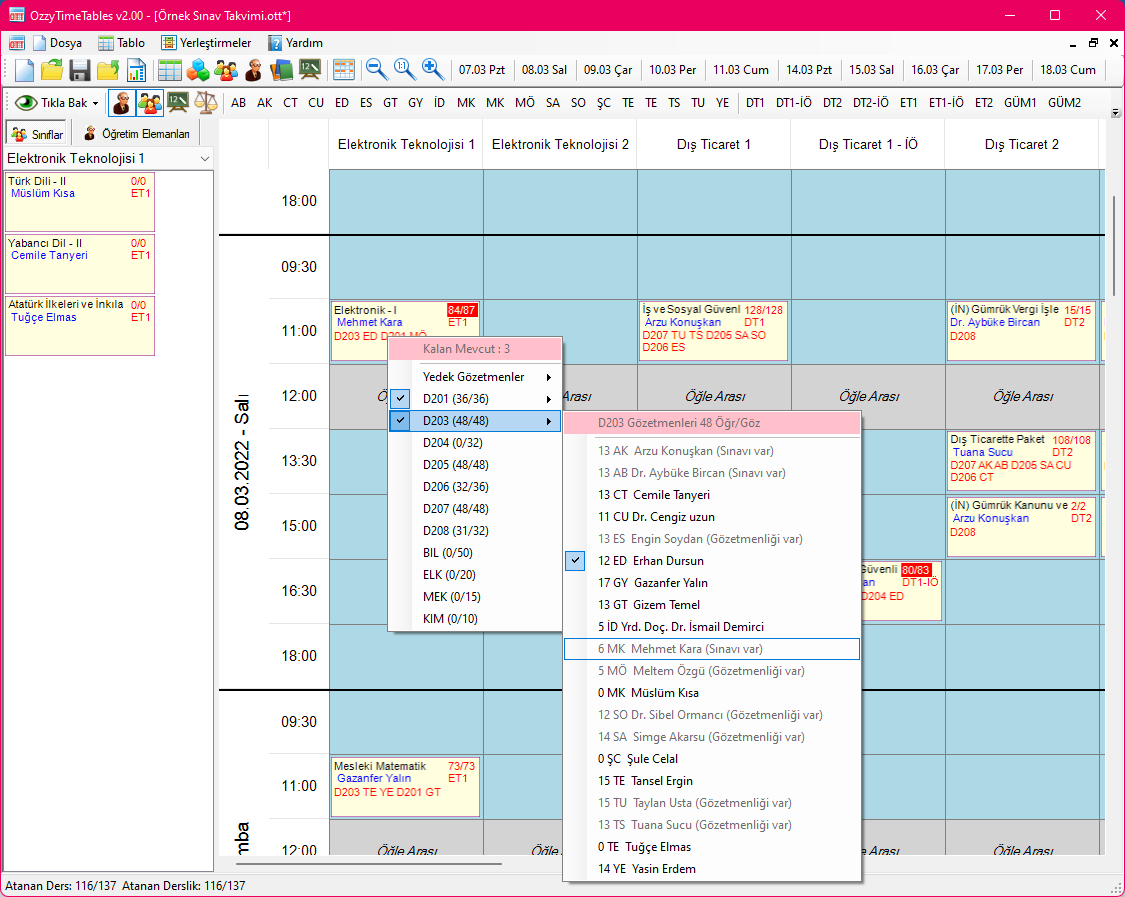
Select classrooms until the total exam enrollment is accommodated. The top of the menu shows the unallocated student headcount. When all students are seated across assigned rooms, Remaining Headcount reaches 0 (zero) and room assignment is complete.
Just as an exam can be distributed across multiple rooms, a single large hall can also be shared between different exams taking place simultaneously. Any unseated students from a second exam can be allocated to the remaining empty seats of a previously assigned hall.
If an exam's enrollment is not completely seated, the allocated/total enrollment badge displays a red background to highlight the shortage.
At the top of the proctor selection menu, an indicator displays the students-per-proctor ratio, helping you balance supervisory workloads fairly among academic staff.
Once all exams, classrooms, and proctors are assigned, your Exam Schedule is complete. You can proceed to generate your Reports and Outputs.
 To export the complete exam schedule into an Excel workbook, select Export Schedule Table to Excel from the Timetable menu. Microsoft Excel must be installed on your computer.
Created with the Personal Edition of HelpNDoc: How to Protect Your PDFs with Encryption and Passwords