Preview Window
Preview Window
While preparing a schedule, it is often useful to check the overall status and timetable layout of individual Instructors, Classes, or Classrooms. The Preview Window serves as an interactive companion tool for this purpose.
The Preview Window is managed using the toolbar containing the  eye icon. Clicking or hovering over codes on this toolbar displays the overall schedule for that entity.
: Toggles view behavior options for the preview window:
- Click to View: The preview window opens when you click a code and closes when you release the mouse.
- Hover to View: The preview window opens when you hover over a code and closes when you move the cursor away.
- Keep Open: Keeps the preview window pinned and open continuously. Useful for positioning the window on a second monitor while working on the primary display.
 : Shows or hides Instructor codes on the preview toolbar.
 : Shows or hides Class codes on the preview toolbar.
 : Shows or hides Classroom codes on the preview toolbar.
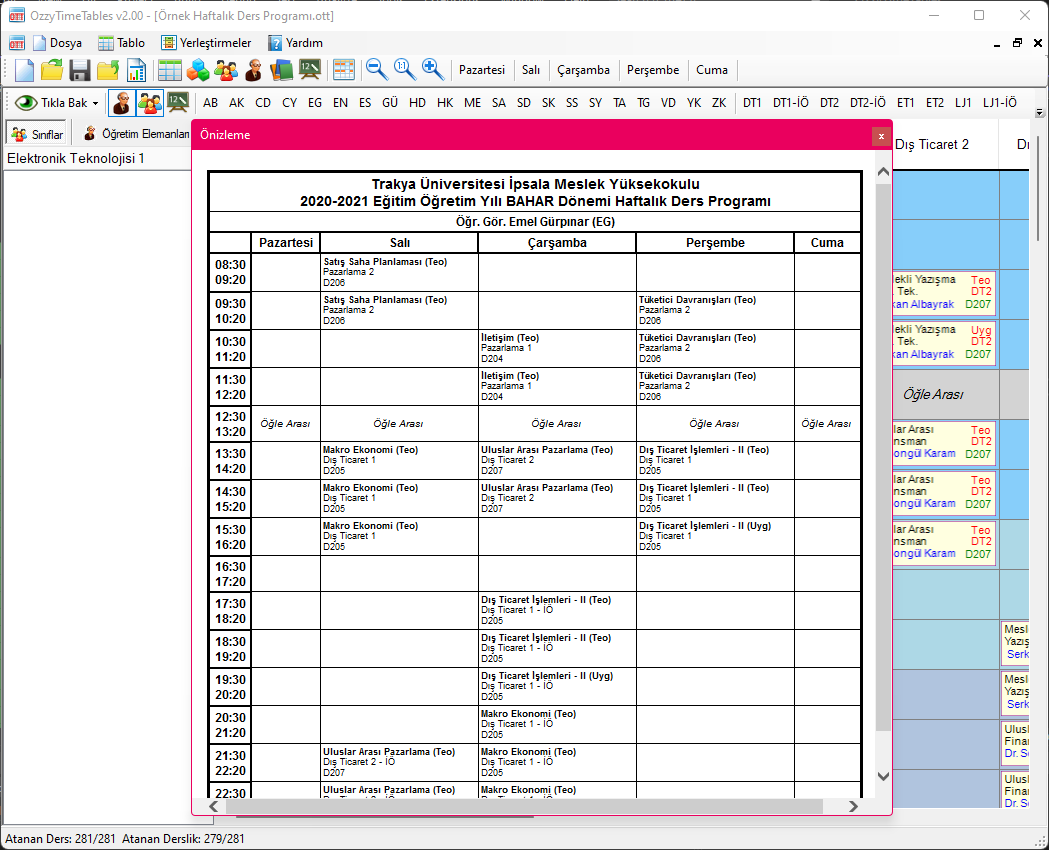
When working on an Exam Schedule, the  scales-of-justice icon is added to the toolbar. This opens the Proctor Workload Distribution table, which displays statistical metrics to help schedule planners ensure a fair and balanced distribution of proctoring duties.
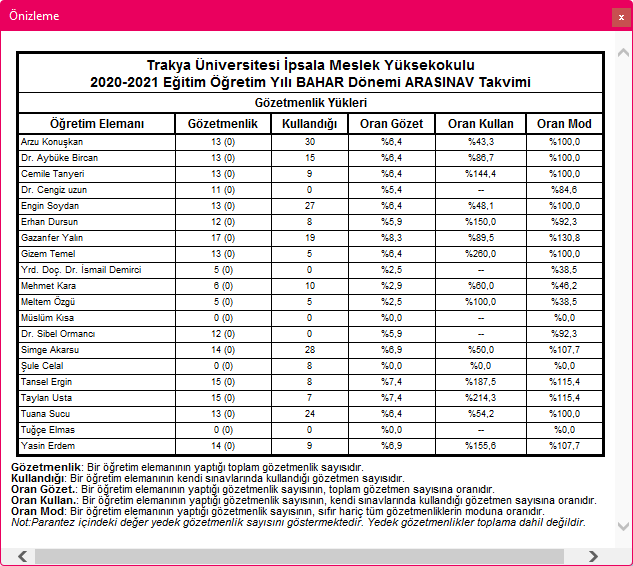
Columns in this table include:
- Proctoring Duties (Gözetmenlik): Total proctoring duties assigned to the instructor (the number in parentheses indicates backup duties).
- Proctors Utilized (Kullandığı): Total proctors utilized for the instructor's own exams.
- Proctor Ratio (Oran Gözet): Ratio of instructor's proctoring duties to total institutional proctoring duties.
- Utilization Ratio (Oran Kullan): Ratio of duties performed to proctors utilized in own exams.
- Mode Ratio (Oran Mod): Ratio of duties performed to the statistical mode of non-zero proctoring duties across the faculty.
Created with the Personal Edition of HelpNDoc: Make your documentation accessible on any device with HelpNDoc