Timetable Information
 Timetable Information
Timetable Information is the configuration window where general schedule details are set. Headers displayed on report outputs, as well as days, dates, time slots, and schedule type that define the schedule structure, are entered and updated here.
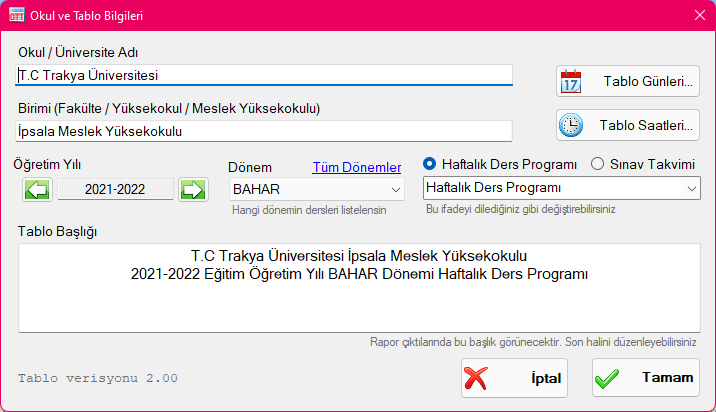
Window Fields
School Name
School Name is the name of the university or school to which your academic unit belongs. You can enter any custom text in this field. The school name is used solely to generate table headers on report outputs and has no functional effect on schedule calculations.
Unit Name
Unit Name represents the sub-unit within the university or school (e.g., Institute, Faculty, College, or Vocational School). Enter your unit name here. It is used to generate table headers on report outputs and has no functional effect on schedule calculations.
Academic Year
Academic Year indicates the school year for which the timetable is being prepared (e.g., 2024-2025). It is displayed in table headers on report outputs and has no functional effect on schedule calculations.
Semester
Semester indicates the academic term (semester) of the timetable. FALL and SPRING semesters are defined by default. When preparing term-independent schedules (e.g., Summer School class schedule, Summer School exam schedule, or Maximum Duration exam schedule), click "All Semesters" to leave this field blank. Courses available for placement will be filtered according to the selected semester, allowing only matching courses to be scheduled.
Program Type
Program Type can be selected as one of two modes: Weekly Class Schedule or Exam Schedule. For report headers, you can either select a predefined label or enter custom text. While the custom label text does not alter application logic, choosing between Weekly Class Schedule and Exam Schedule fundamentally configures the operating mode and workflow of the entire application.
Timetable Title
Timetable Title provides a live preview of the main header that will appear on printed and exported reports. It is initially generated automatically by combining School Name, Unit Name, Academic Year, Semester, and Program Type. You can freely edit this title; it has no effect on application logic.
Note: If you customize this title and subsequently alter School Name, Unit Name, Academic Year, Semester, or Program Type, the title will be regenerated automatically, overwriting your custom edit. Therefore, make any custom title edits last before clicking "OK" to save.
Timetable Days / Dates
For Weekly Class Schedules: Select which days of the week the schedule covers. If you remove days from an existing schedule, class assignments on those days will be removed automatically. Adding new days preserves all existing assignments.
For Exam Schedules: Define the specific calendar dates when exams will take place. Add rows specifying each exam date. To modify an existing date, double-click on it; all exam placements on that date will be preserved under the updated date. Deleting a date row removes all exams placed on that date.
Hours and Time Slots
For Weekly Class Schedules, specify how many class periods each day will have, along with start and end times for each period. Entering start and end times automatically calculates the duration. Alternatively, entering start time and duration automatically computes the end time.
Add creates a new period. Delete removes the selected period. Up and Down arrow buttons reorder periods.
To edit any cell in the hours table, double-click it or press F2 on the selected cell. Enter time in HH:MM format. Duration must be an integer representing minutes.
The P.E. (Primary / Daytime Education) and S.E. (Secondary / Evening Education) checkboxes designate which student cohorts can be placed in that time slot. Daytime classes cannot be scheduled into slots reserved exclusively for Evening classes, and vice versa. Slots marked for both Daytime and Evening can accept courses from either cohort. If neither option is checked, no classes can be scheduled into that slot—ideal for lunch breaks or evening intermissions. You can enter an explanatory label (e.g., "Lunch Break") in the Note column to display on report outputs.
Time Slot Templates enable you to save period structures and reuse them across different files (such as separate templates for regular classes vs. exam periods) without manual re-entry. Type a descriptive name and click "Save" to store a template. To apply a saved template, select it from the dropdown and click "Load". Click "Delete" to remove a template.
Created with the Personal Edition of HelpNDoc: Effortlessly optimize your documentation website for search engines