Departments / Programs
 Departments / Programs
There is no operational difference between Departments and Programs in the software. In faculties, they are treated as academic departments, whereas in vocational schools, they represent vocational programs (e.g., Department of Electrical Engineering or Electronic Technology Program). This window is used to add, list, update, and delete Departments / Programs.
Department / Program and Class Relationships
As illustrated below, classes are defined linked to specific departments or programs. Courses defined for a Department / Program are automatically listed under all classes associated with that Department / Program.

Data Fields
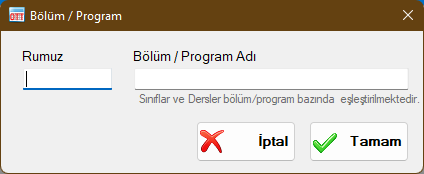
Department / Program Name
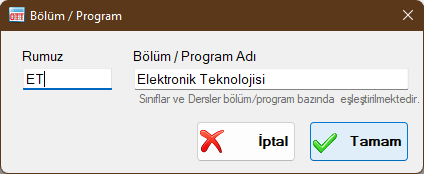
Enter the complete name of the department or program. Avoid excessively long descriptions, as they may reduce the readability of tables in report outputs. For instance, rather than typing "Department of Electronic Technology Vocational Program", consider using "Electronic Technology" or "Electronic Tech."
Code / Abbreviation (Rumuz)
A short mnemonic code consisting of a few characters identifying the department or program. For example, you can use "ET" for "Electronic Technology" or "JUST" for "Justice".
Department / Program Windows
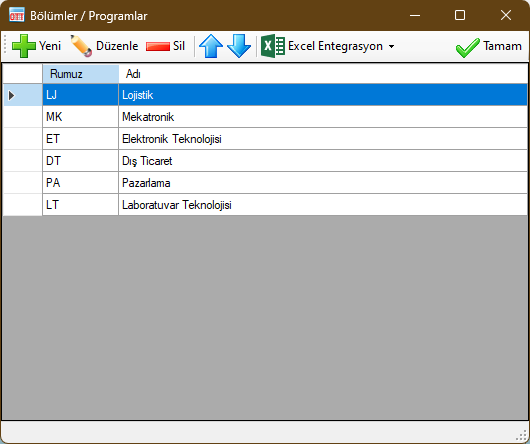
 New: Used to add a new Department / Program record.
 Edit: Used to edit or update the selected Department / Program. Any modifications will take effect immediately across all schedules and report outputs.
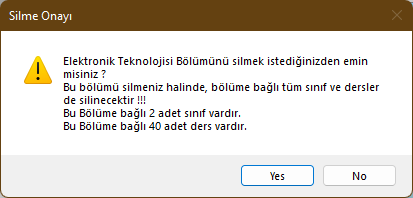
 Delete: Deletes the selected Department / Program. If any classes or courses are linked to this record, a confirmation warning will notify you that all linked classes and courses will also be removed. For instructors affiliated with the department, only their department affiliation field is cleared.
 Move Up: Moves the selected Department / Program record up one position. Because this order determines the sequence of schedule columns (classes), you can adjust it to customize your schedule layout and report/Excel column order.
 Move Down: Moves the selected Department / Program record down one position.
 Excel Integration: Enables two-way data exchange with Microsoft Excel™. You can export registered data to Excel or import existing Excel data directly into the application. Microsoft Excel must be installed on your computer to use this feature.
 Generate Excel Template: Generates a formatted Microsoft Excel™ workbook with dedicated columns for entering data for this window. You can populate or paste data into this template and import it into OzzyTimeTables.
 Export Data to Excel: Exports all records visible in this window into Microsoft Excel™. Once exported, the data in Excel is independent of the OzzyTimeTables application file and can be modified or archived freely.
 Import Data from Excel: Prompts you to select an Excel workbook matching the template format. Valid rows will be imported in bulk into the application window.
Note: If data rows fail validation checks (e.g., text entered where numbers are expected or missing mandatory values), the problematic cells will be highlighted with red backgrounds in Excel, accompanied by descriptive comment notes explaining the issue.
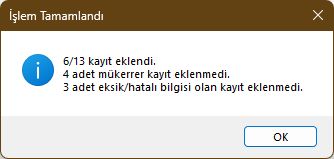
Upon completing an import, a summary report states how many records were imported and how many failed. You can correct highlighted cells in Excel and re-import as needed.
Validation rules for Department / Program records:
- Code / Abbreviation cannot be blank
- Department Name cannot be blank
Records violating these rules are rejected during import. Duplicate records sharing the exact same Code and Name as an existing record are skipped automatically.
Created with the Personal Edition of HelpNDoc: Easily create iPhone documentation