Data
Data
Data refers to all information you record within the application. This application does not transmit or share any entered data online, nor does it process data for any purpose outside the application. All your data is kept securely in the OTT file you create. There is no other storage medium where data is stored.
No Database Required
There is no central database server in this application. All data is stored directly inside the schedule files you create.
After manually entering all data once to create your initial schedule file, any new schedule file you create can continue seamlessly by pulling the data stored in the previous file.
When you modify or update data, these changes are carried over to newly created files like an inherited trait. Consequently, the data in your most recent working file will always carry the most up-to-date information.
At the same time, each past file continues to preserve its own internal integrity. For example, if an instructor leaves the institution and you delete them from the active data, this will not affect files created in the past. Whenever necessary, a schedule file from a past semester can be opened, reviewed, modified, and re-exported.
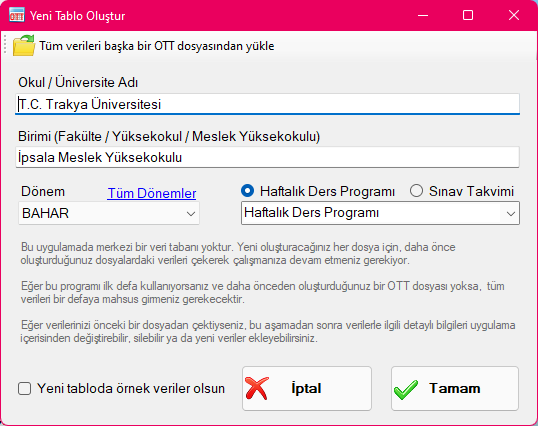
Since there is no centralized database, the new file creation dialog provides an option to import data from another file. This allows you to pull all data from your previous file and resume work effortlessly whenever you start a new schedule.
In this context, backing up your data simply means backing up your most recently created file. As long as you keep your latest file safe, you will never have to re-enter your data.
Your First Timetable
When creating a new timetable, you will first be prompted for basic information such as School / University Name, Unit Name, Semester, and Program Type. If you are creating a timetable for the first time, click "OK" in this dialog and then enter the detailed information as described below. If you want to explore how the application works, you can open, review, and modify the "Sample Weekly Class Schedule" and "Sample Exam Schedule" files created in the OzzyTimeTables folder inside your Documents directory during installation. Note: All names in the sample files are entirely fictional and do not represent real persons.
If you already have a previously created OTT file, you can select "Load all data from another OTT file" to transfer all data from that file into your new file and proceed.
Preparing the Data
Before you begin preparing a schedule, all Department / Program, Class, Course, Instructor, and Classroom information should be entered and ready. Data can be entered in three ways:
- Entering all data manually one by one
- Bulk data entry using Microsoft Excel
- Importing data from a previously created timetable
Entering Data Manually
If you are using the application for the first time and have no prior data, you will need to enter all records manually once. Because certain records contain relational dependencies, following this hierarchy will make data entry straightforward:
- First, enter Department / Program information.
- Add Classes linked to Departments and Programs.
- Add Curriculum Courses to Departments / Programs.
- Enter Instructor information.
- Enter Classroom information.
Data Entry with Microsoft Excel
If the data you wish to enter is already stored in Excel spreadsheets, you can import this data in bulk quickly and conveniently. In each data window, click the "Enter Data with Excel" button to open an Excel template, where you can paste your data without changing the column format. All pasted data conforming to the format will be imported into the corresponding data window. This option is especially helpful for your initial data entry.
Importing Data from Another Timetable
If you have already created an OTT file previously, you can pull all data from that prior file for the new timetable you are creating. To do this, select "Load all data from another OTT file" and choose your most recent file. All records will be imported into the newly created schedule file.
Exporting Data to an Excel File
If you ever need to extract your schedule data into an Excel spreadsheet for any reason, choose Export All Data to Excel from the Timetable menu. All records in the file will be exported to an Excel workbook, where you can save and modify them as desired. Microsoft Excel must be installed on your computer to perform this export.
Created with the Personal Edition of HelpNDoc: Easy CHM and documentation editor